Ever wanted to create that Simple stylized grass? Well, you are here in the right place! You’ll learn how to Create the Grass texture in Blender, and how to distribute it on a ground plane via the Particles System, then prepare it for rendering.
This Tutorial will be divided into 4 parts:
- Setting up the Ground geometry
- Creating the Grass Texture
- Setting up the Particles System
- Preparing the Scene for Rendering
Let’s dive right in!
Transform your Blender workflow with these Addons!
Setting up the Ground geometry
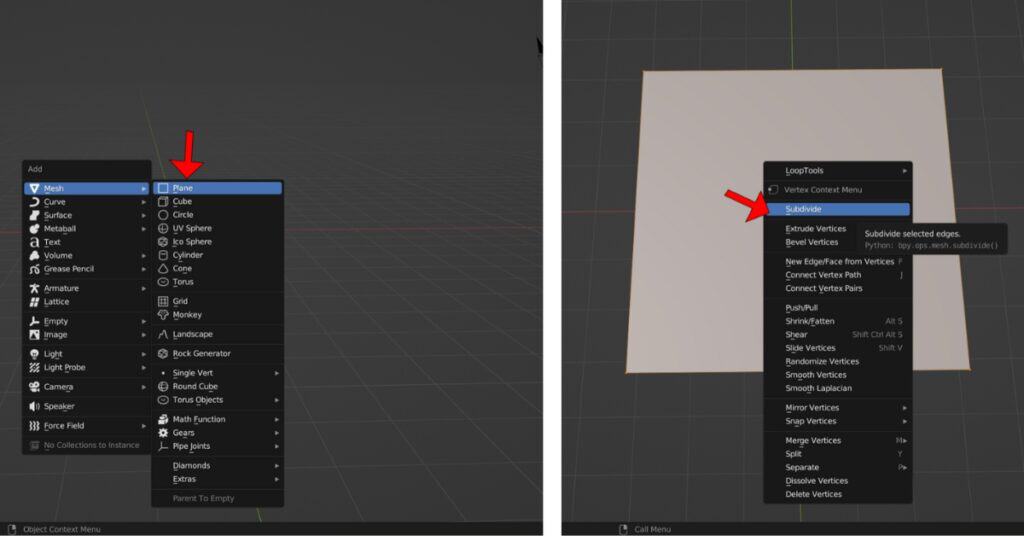
Add a Plane to your scene with (SHIFT+A). Scale then Select it and enter Edit mode (TAB), select all (A) and (Right-Mouse-Button)>Subdivide.
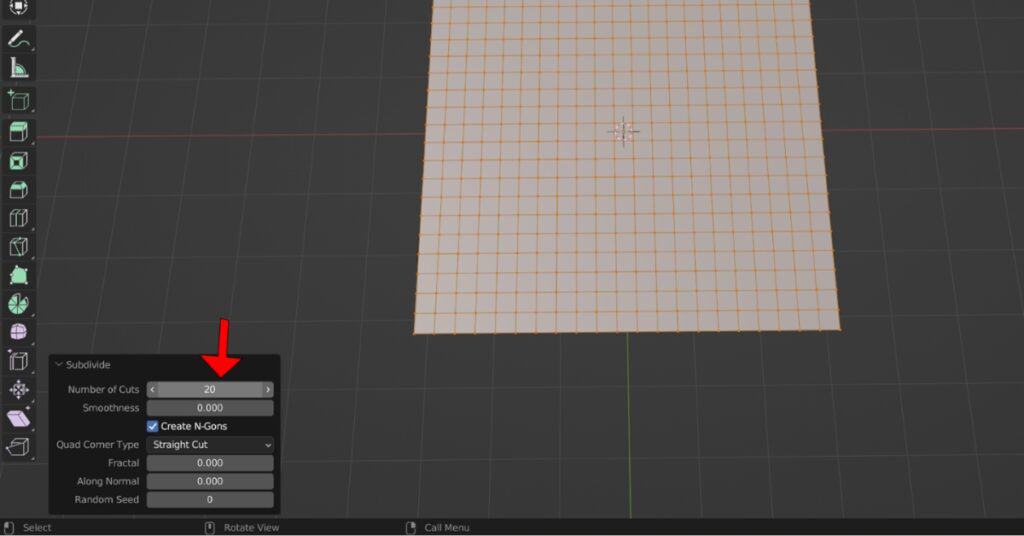
Set the Number of Cuts to 20 from the bottom-left “Subdivide” tab.
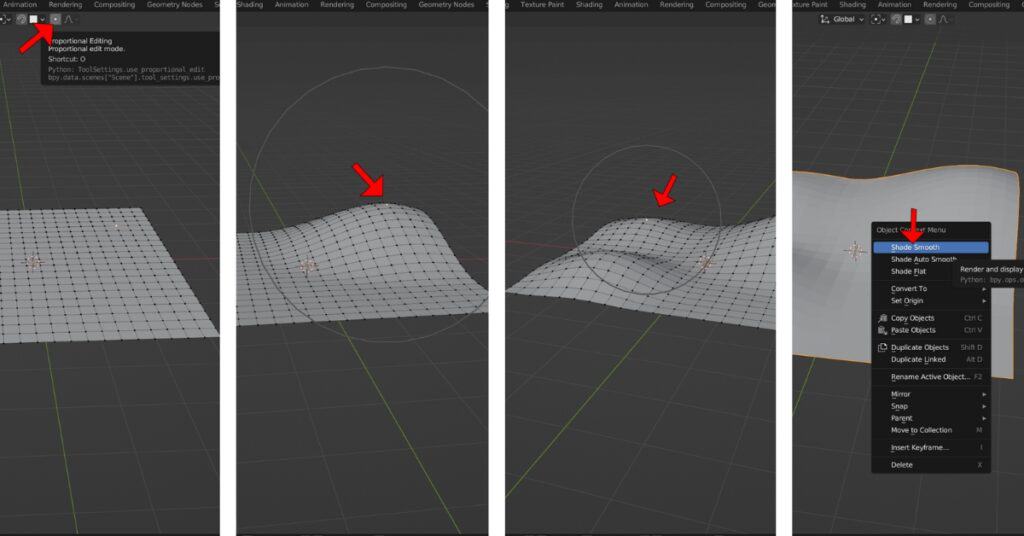
Activate “Proportional Editing” from the button above or with the (O) Shortcut,you can make the circle that affects the geometry bigger or smaller with the Mouse Scroll-Wheel. Adjust the plane accordingly, and Smooth it(Right-Mouse-Button)>Shade Smooth; this will act as the Ground.
Creating the Grass Texture
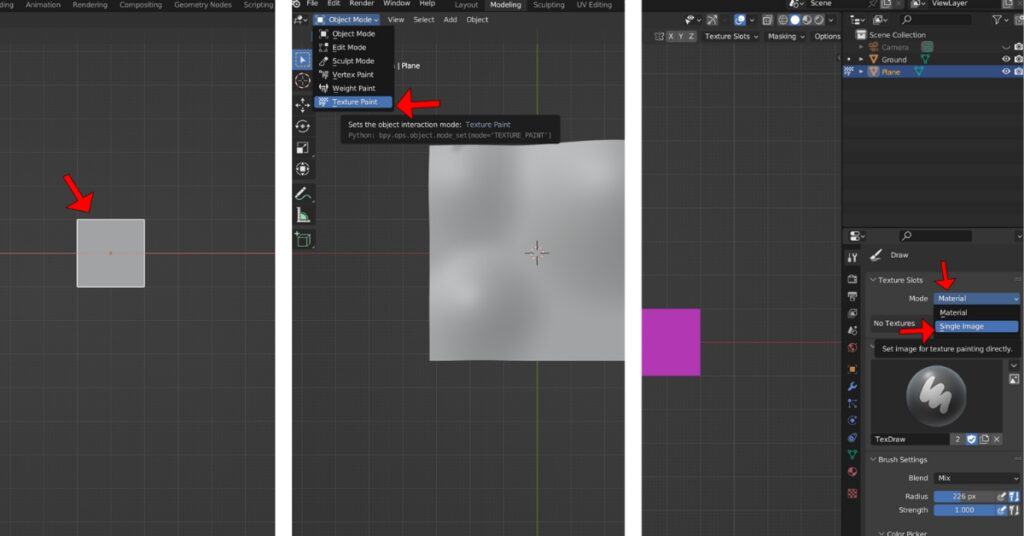
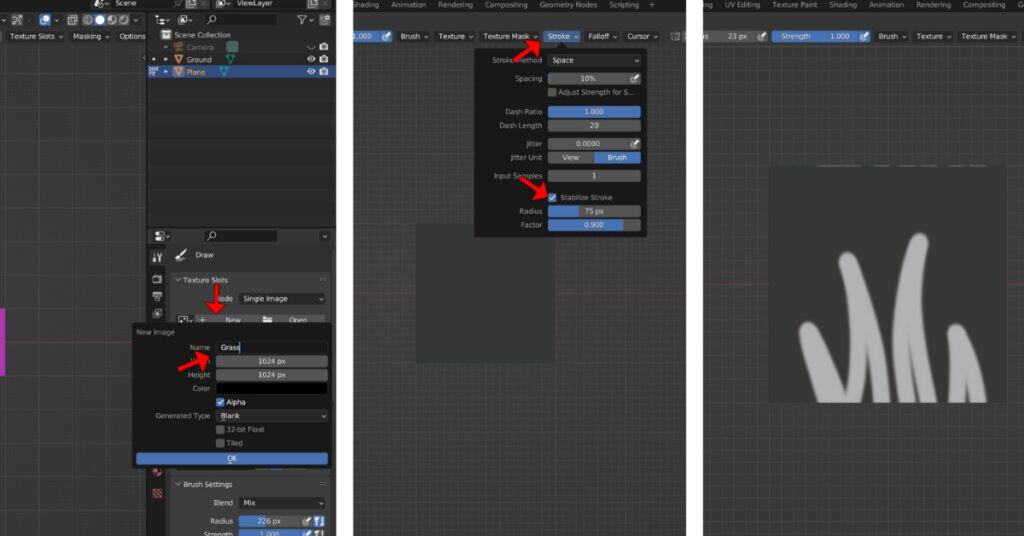
Add a new plane for the grass, navigate above, and change to “Texture Paint” mode. The plane will turn purple. Select the first Properties tab on the right and change the mode from “Material” to “Single Image”.
Add a new Texture and name it “Grass” then press “Ok”. Navigate towards “Stroke” above and activate “Stabilize Stroke”, then draw the grass shape (you can change the brush size with F+Mouse movement).
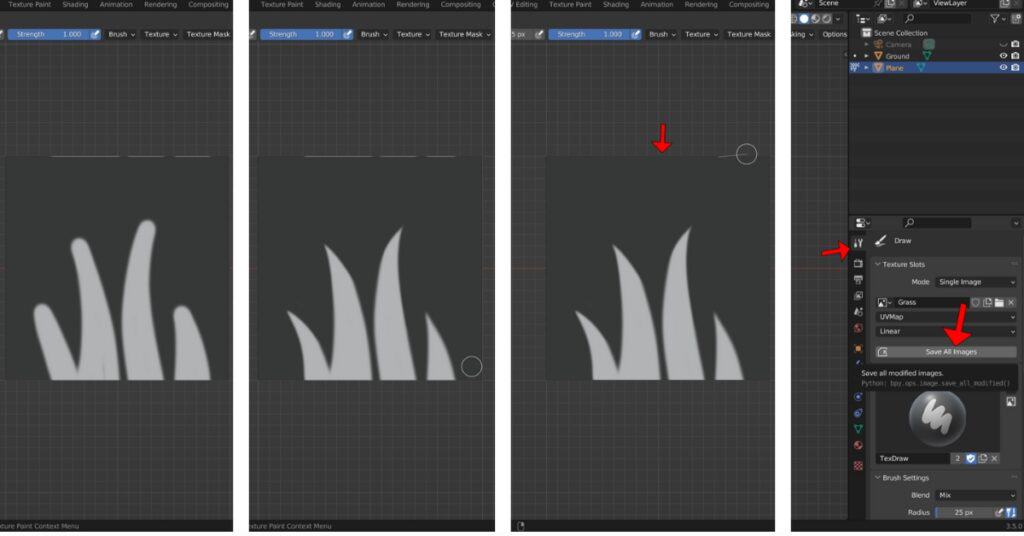
Refine the shape and make it pointy by subtracting (CTRL+Draw). Then, remove the line at the top. Navigate to the right and click on “Save All Images”
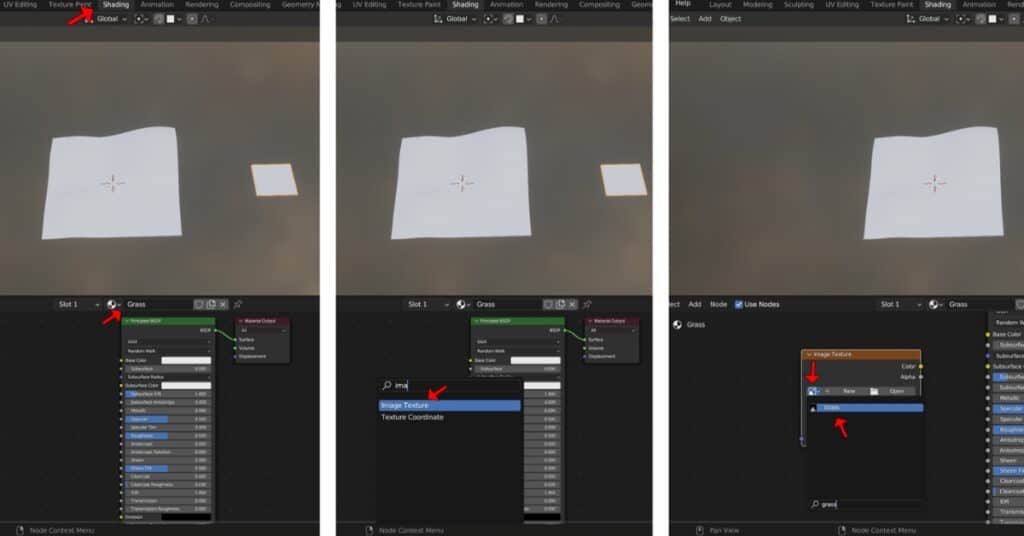
While the Grass geometry is selected, go to the “Shading” Workspace and create a new material named “Grass”. Press (SHIFT+A) and search for the “Image Texture” node, then link the “Grass” texture that we created to it.
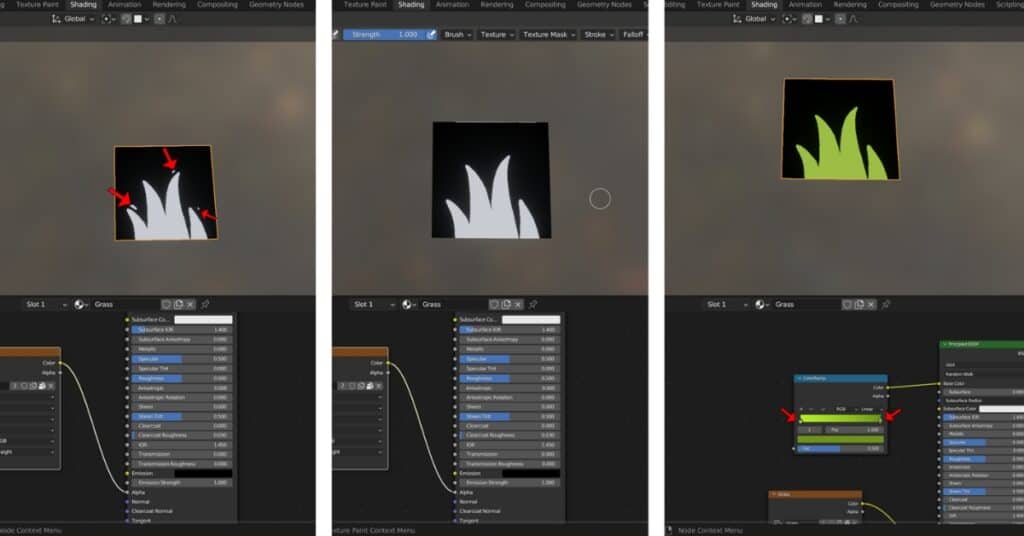
If extra paint appears, remove it in Texture Paint mode. Add a “Color Ramp” to the Shader Editor and adjust its colors to a darker green on the right and a lighter one on the left.
Add a “Gradient texture” node. Then, we need to add Two more nodes. To do it fast, Navigate towards the top Edit tab and enter “Preferences” then Activate “Node Wrangler” in the “Add-ons” menu.
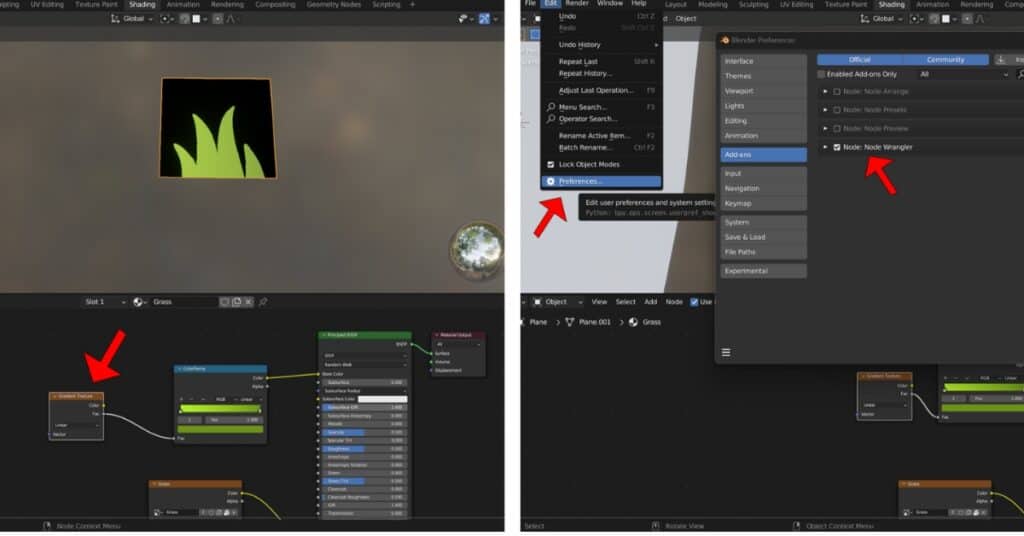
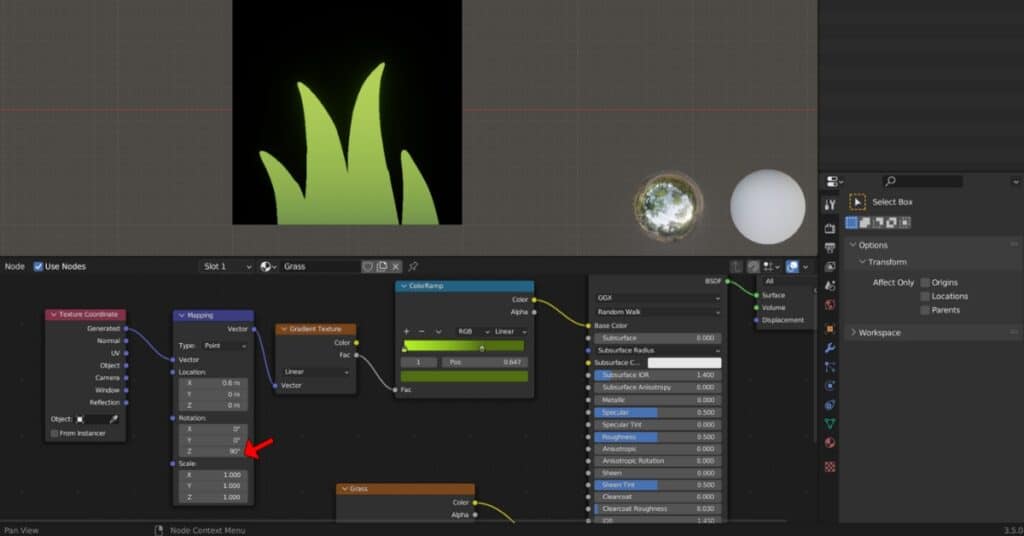
Return to the Shader Editor, select the “Gradient Texture” node, and press (CTRL+T) to add the Mapping and Texture Coordinate nodes. Change the Z Rotation in the Mapping node to 90 degrees.
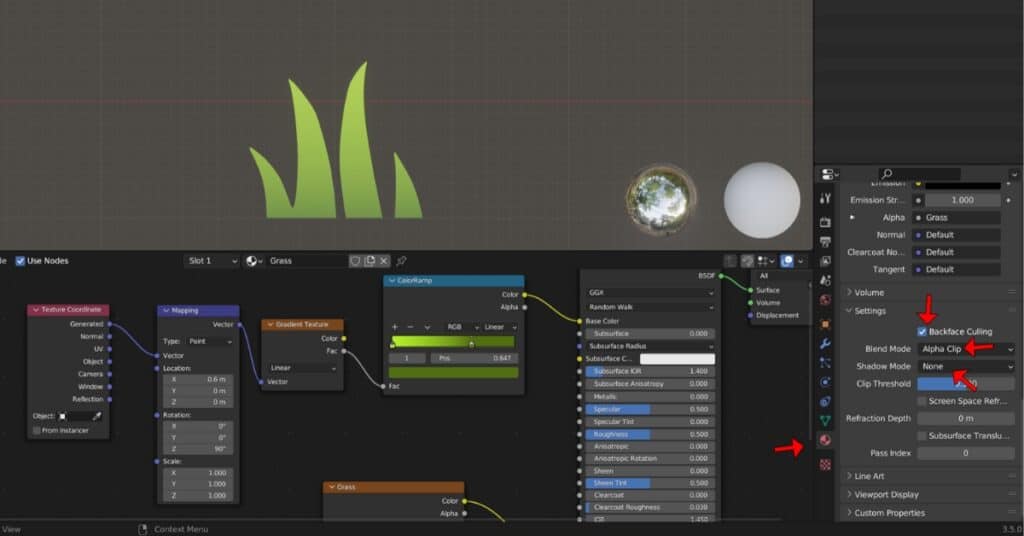
Navigate towards “Material Properties” on the right. Activate “backface Culling”, then change the Blend and Shadow modes to “Alpha Clip” and “None” respectively.
- Backface Culling: a switch that allows the back-face of a face to be hidden.
- “Alpha Clip” Blend Mode: Allows the black part of a painted mask to be transparent.
- “None” Shadow Mode: This mode prevents the mesh from casting any shadow.
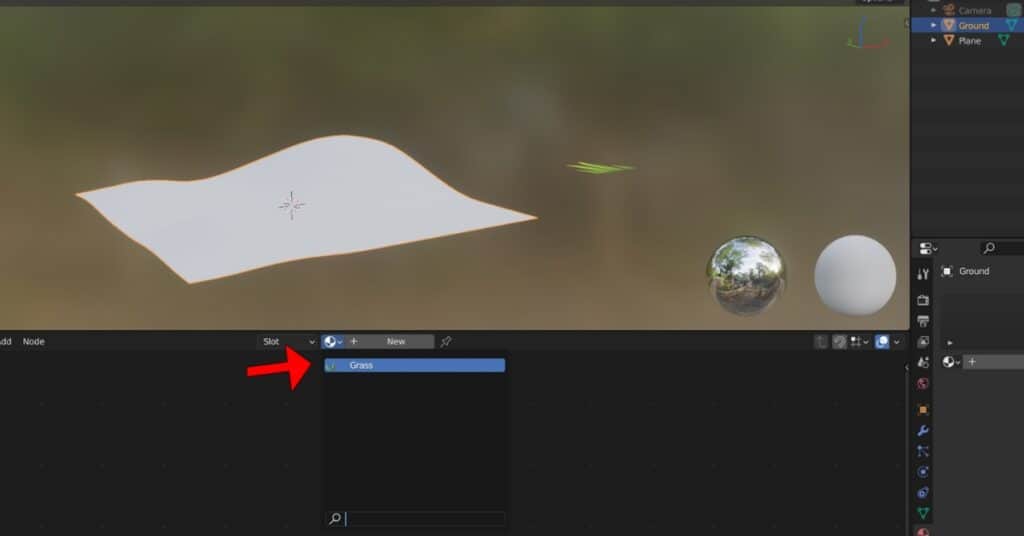
Now, Select the Ground geometry and add the “Grass” Material to it.
Navigate towards the “UV Editing” Workspace. In Edit mode, Select the Ground geometry and add the “Grass” Texture to it above.
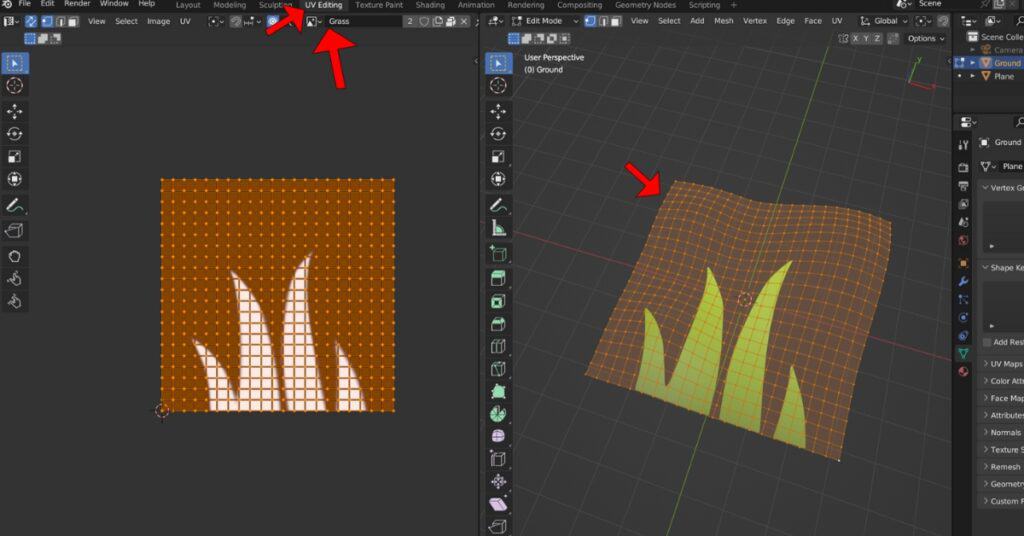
Scale down the UV of the ground to the middle of the grass texture to Have its color.
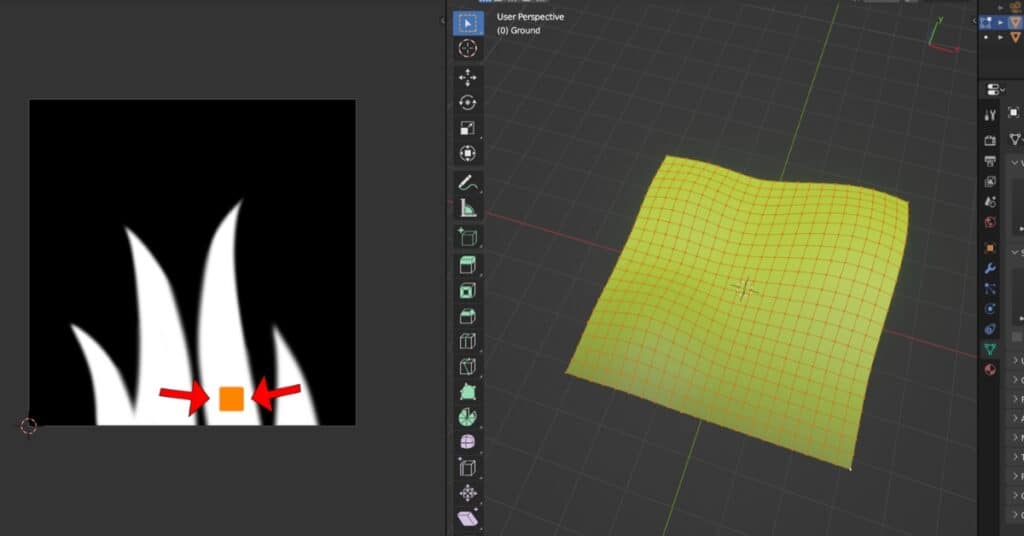
Setting up the Particles System
Go to the “Particle Properties” on the right and add a new particle system named “Grass”.
Start Learning Blender with this list of Blender Tutorials!
Switch to “Hair” instead of “Emitter” and turn on “Advanced”. Scroll down and in the Render dropdown menu set the “render As” to be an “Object”, in addition, set the “Instance Object” to be the “Grass” Geometry.
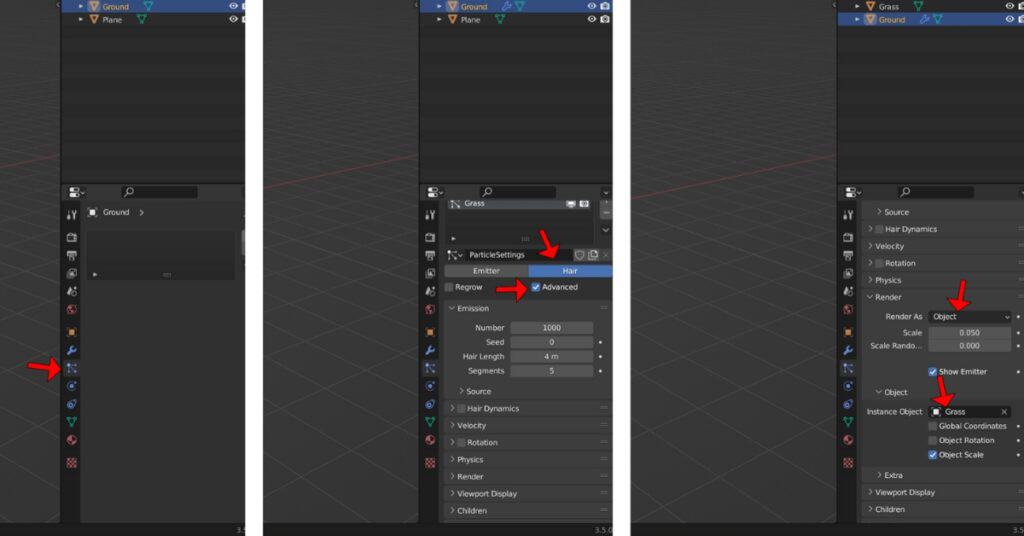
It should look like this now. You will notice that the grass we added on the ground is clipping through it.
To fix that, switch to top view mode (Numpad 7), select the grass geometry, and in Edit mode, move it on the Y-axis (G+Y) until its origin point aligns with the bottom edge.
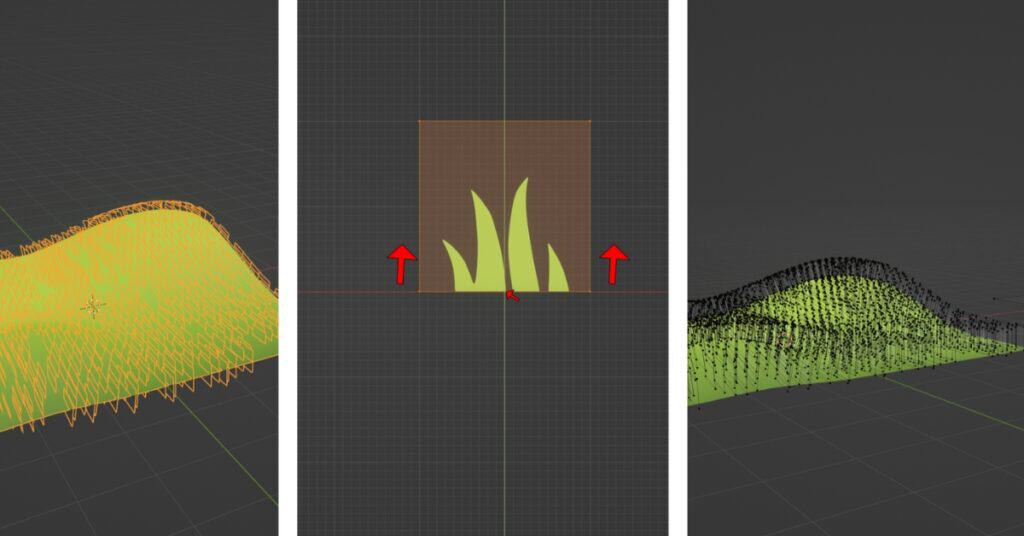
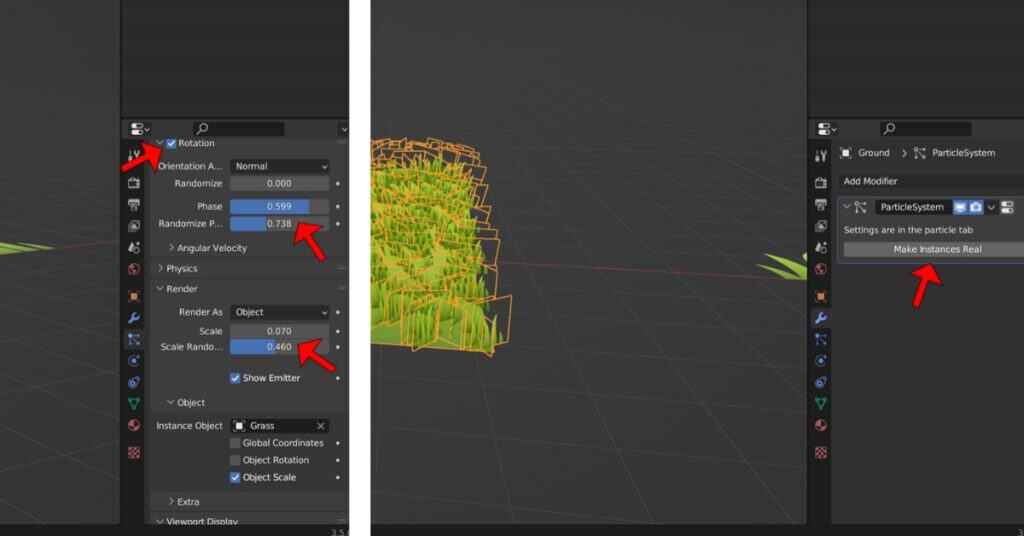
Continue with the “Particle Properties” panel and activate “Rotation”, setting both the “Phase” and “Randomize Phase” to 0.599 and 0.738 respectively. Additionally, in the Render dropdown, set the scale to 0.070 and the scale randomness to 0.460.
In the “Modifier Properties” click on “Make instances real” to make the particles separate objects.
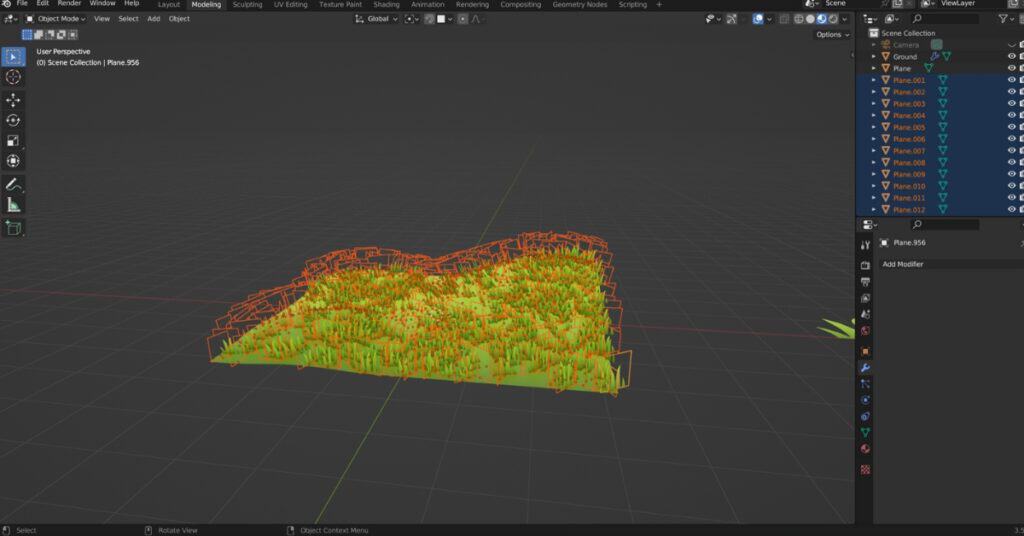
All of them should be selected, click on one of them to make it active.
(SHIFT+Left-Mouse-Click)
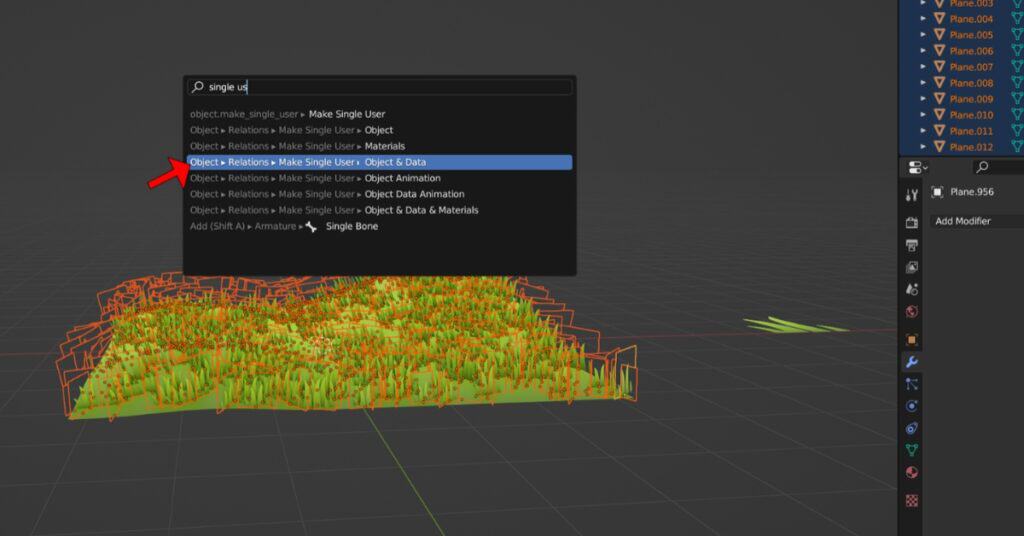
Press (F3) and search for “Make Single user” and click on it.
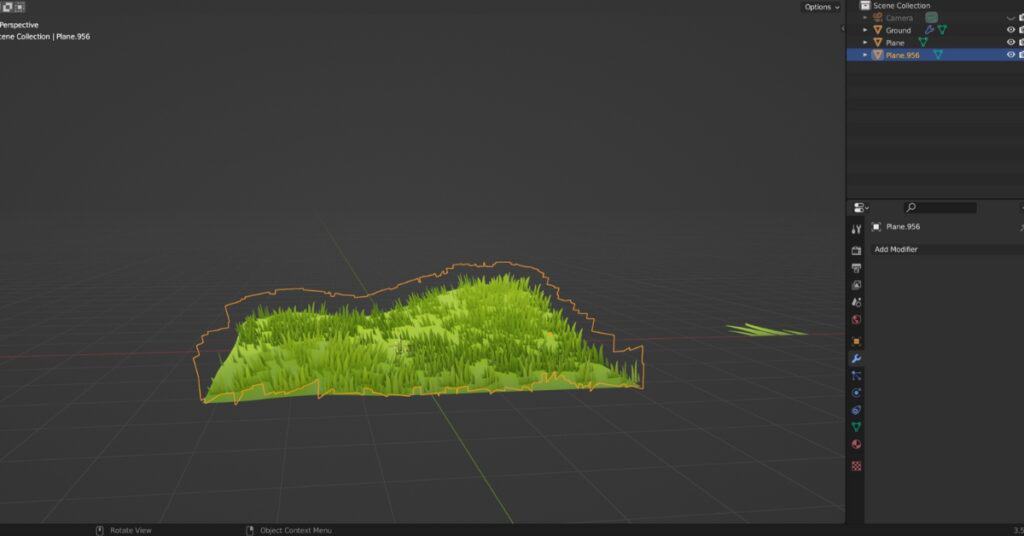
Now, join everything selected with (CTRL+J).
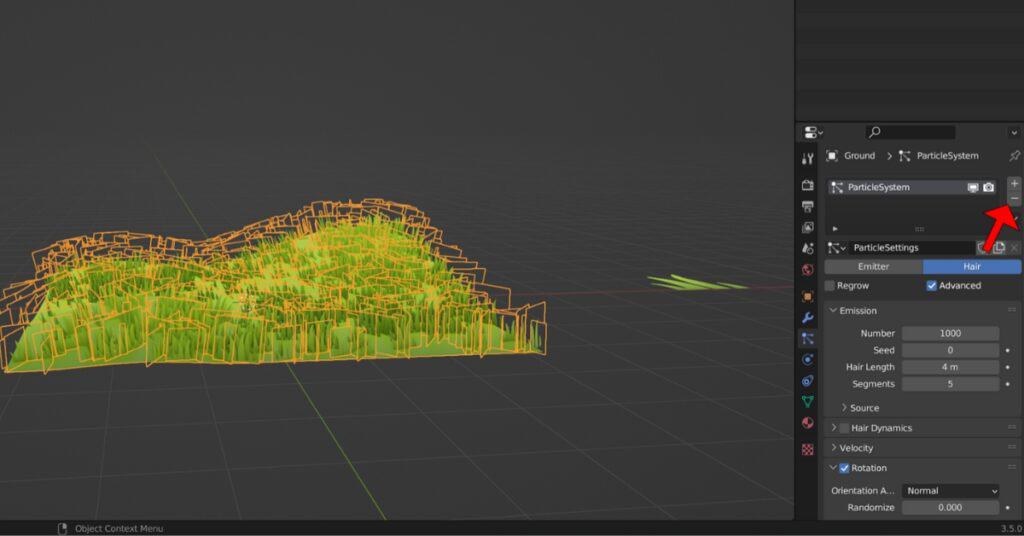
Select the Ground geometry and remove the particle system with the “Minus” button located in the “Particle Properties” panel.
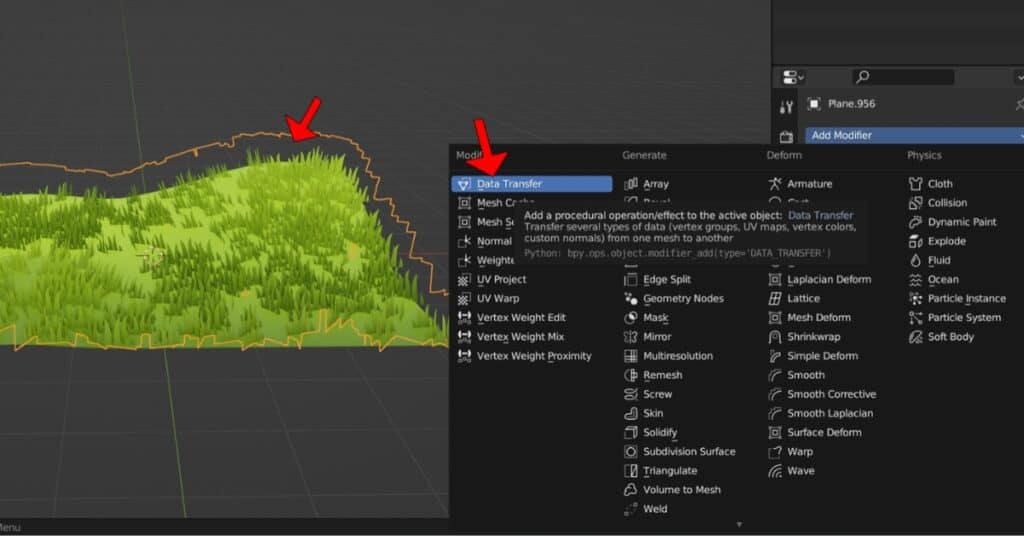
Add a “Data Transfer” Modifier to the newly joined “Grass” Object that houses all the grass.
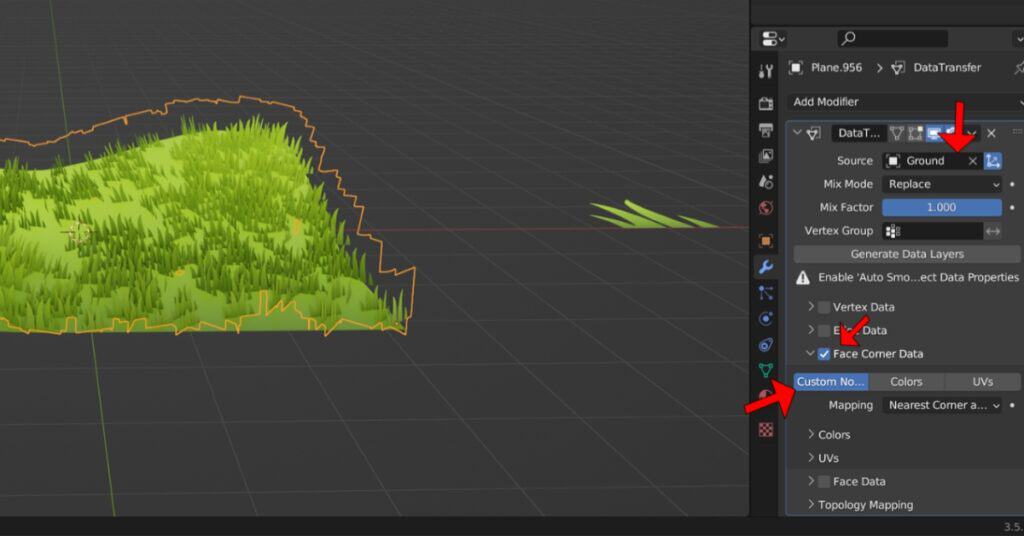
Set the “Source” as the “Ground” geometry. Activate “Face Corner Data” and turn on “Custom Normals”.
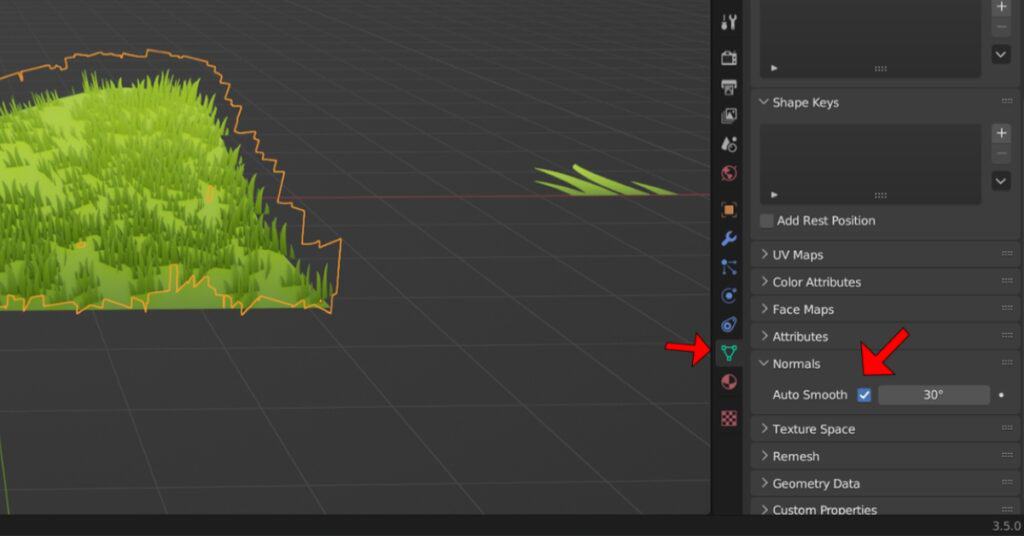
Go to the “Object Data Properties” panel and activate “Auto Smooth”.
Setting the Scene up
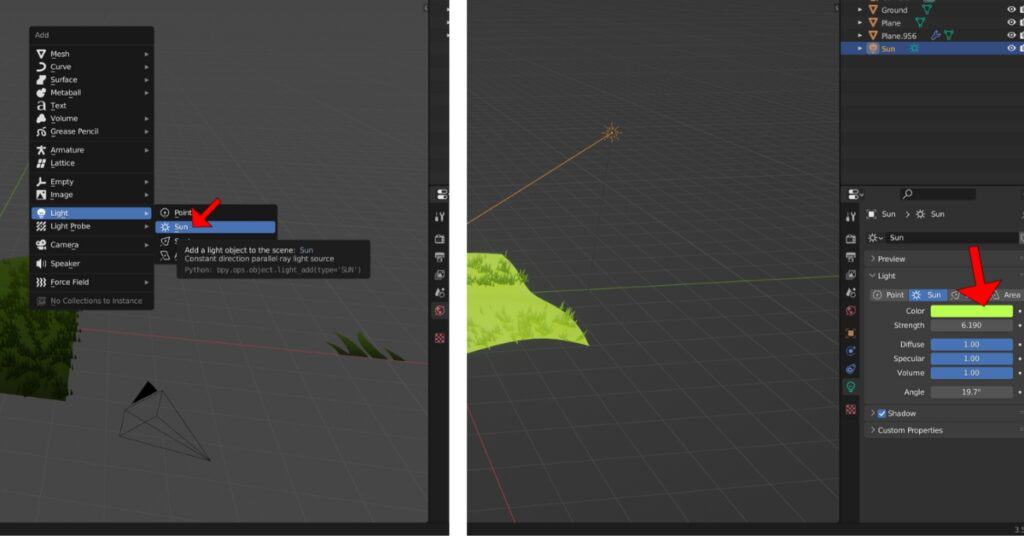
Add a Sun light, change its color and strength.
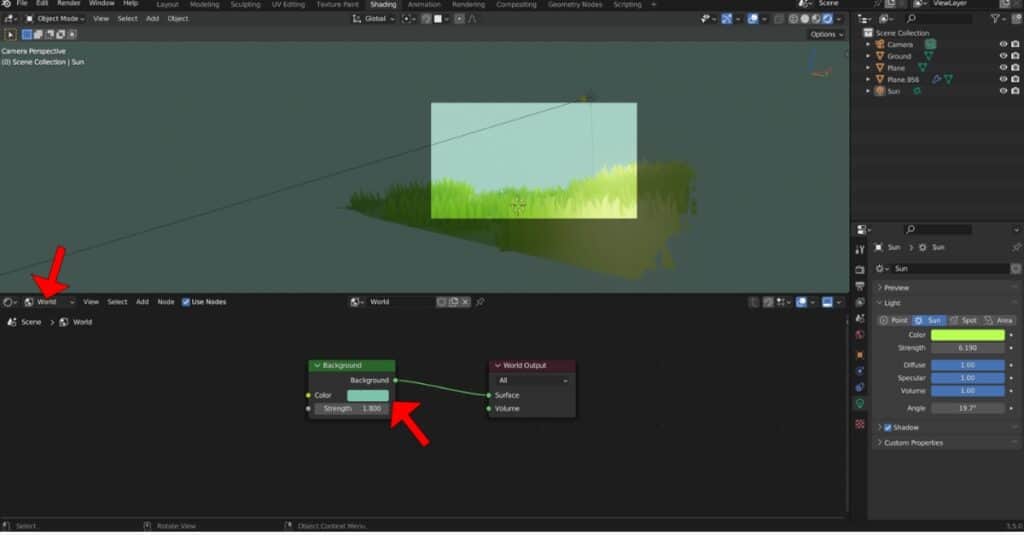
In the “Shading” workspace, go to the “World” shader editor and modify the world color and strength.
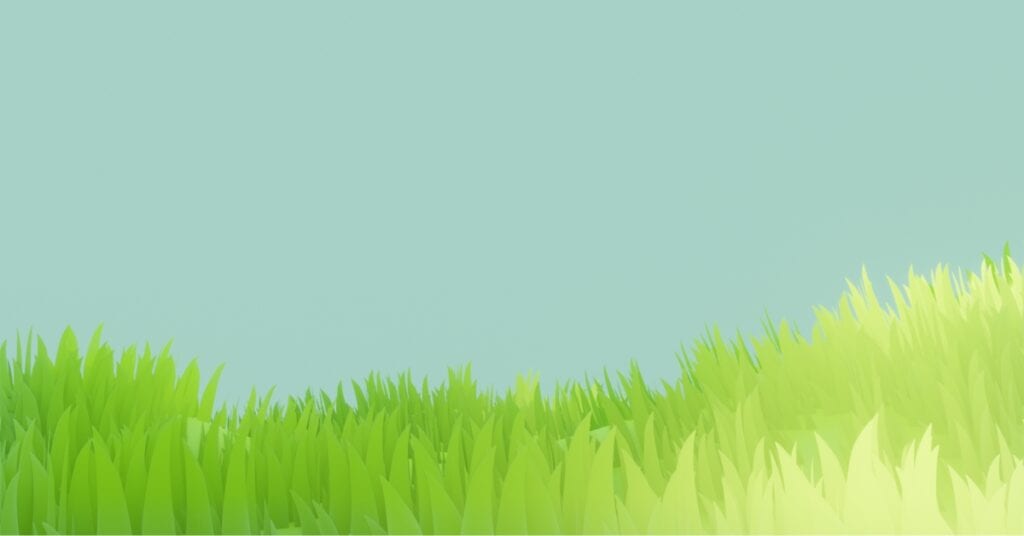
It’s ready to be Rendered!
Thank you for following this Guide, see you in the Next one!
Check out this tutorial on Applying Scale in Blender.
Interested in 3D artist jobs? Browse the latest openings at artblast.co/3d-artist-jobs.
Looking for a game art job? ArtBlast curates 10-60+ game art jobs daily. Subscribe at artblast.co/subscribe and apply while the role is still fresh.
Related Articles